Docker Setup
Installing and configuring Docker
Windows
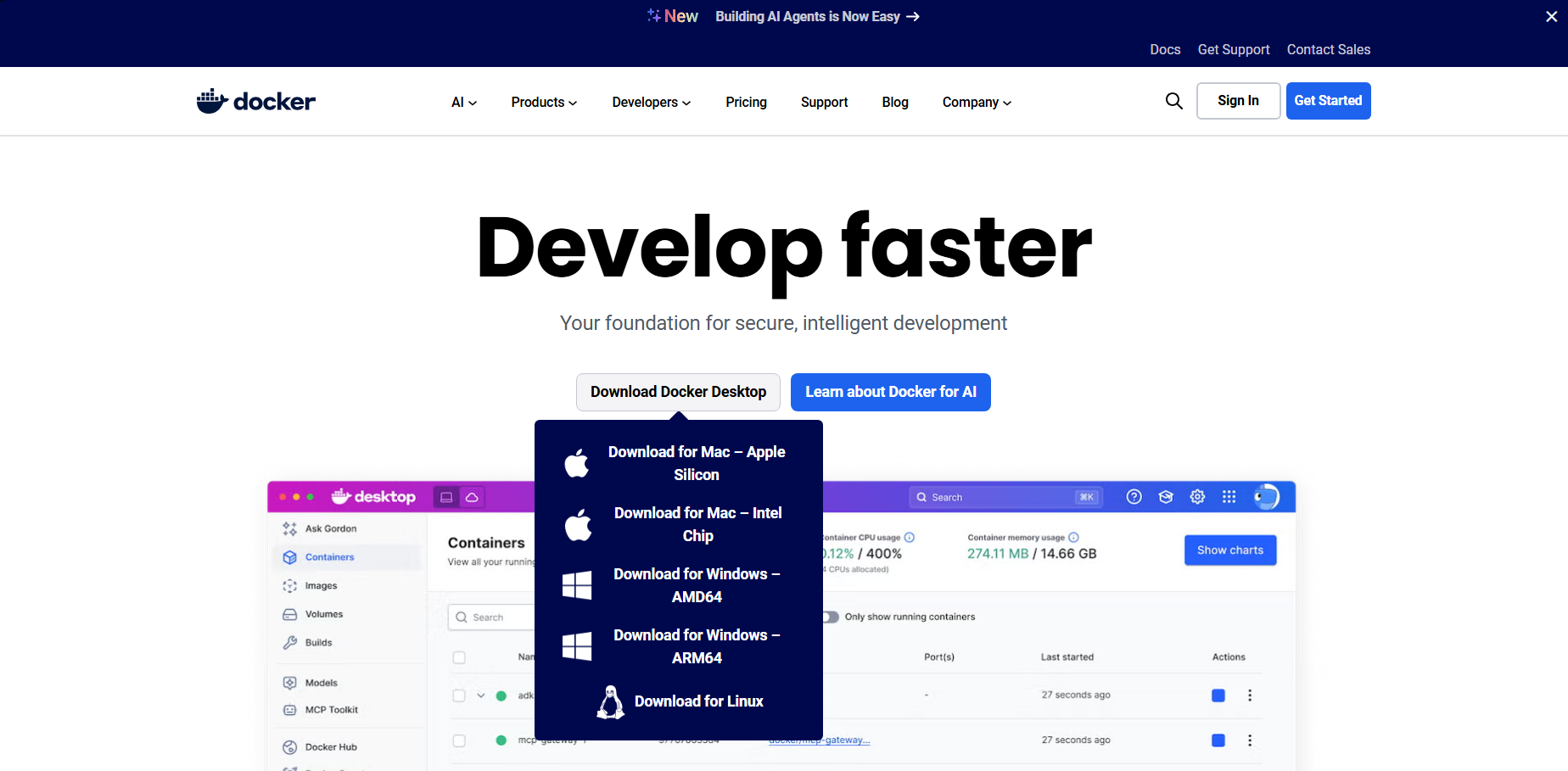
- Download Docker Desktop from the official Docker website.
- Run the installer and follow the on-screen instructions.
- Once installed, open Docker Desktop and make sure it is running.
At this point you may need to enable or install WSL (Windows Subsystem for Linux) so that Docker works properly. You can follow the instructions in the official Docker documentation to enable WSL.
- To verify that Docker is installed correctly, you can open Docker Desktop and run the following command in the terminal:
docker --version
Linux (Ubuntu)
Follow the official guide for installing Docker on Ubuntu to install Docker on your system.
Deploying a Spring Boot and React application with Docker
To keep the example simple, we will use a basic Spring Boot and React application that consumes an API. The steps to deploy this application using Docker are described below.
Backend - Creating the Dockerfile
First we assume you are using Maven, although you can really use any build tool you prefer. Create a file called Dockerfile in the root of your Spring Boot project with the following content:
# Stage 1: Build the WAR
FROM maven:3.8.5-openjdk-17 AS builder
WORKDIR /app
COPY . .
RUN mvn clean package -DskipTests

# Stage 2: Deploy the WAR on Tomcat
FROM tomcat:9-jdk17
COPY --from=builder /app/target/*.war /usr/local/tomcat/webapps/ROOT.war

EXPOSE 8080
Here we can see something called a multi-stage build. It allows us to create a lighter image by separating the build process from the runtime one. In the first stage, we use a Maven image to compile the project and generate the WAR file. In the second stage, we use a Tomcat image to deploy the generated WAR.
Frontend - Creating the Dockerfile
Create a file called Dockerfile in the root of your React project with the following content:
# Stage 1: build
FROM node:18-alpine AS builder
WORKDIR /app
COPY . .
RUN npm install
RUN npm run build

# Stage 2: serve with nginx (reverse proxy)
FROM nginx:alpine
COPY --from=builder /app/dist /usr/share/nginx/html
COPY ./nginx.conf /etc/nginx/conf.d/default.conf
EXPOSE 80
CMD ["nginx", "-g", "daemon off;"]
Since we are proposing to use nginx, you need to create a configuration file called nginx.conf in the root of your React project with the following content:
server {
  listen 80;
  server_name localhost;

  root /usr/share/nginx/html;
  index index.html;

  location / {
    try_files $uri /index.html;
  }
}
This configures Nginx to serve your React application and to handle routes correctly; otherwise it will likely return a 404 page if you try to access routes that do not exist as static files.
Building the images using docker-compose
Create a file called docker-compose.yml in the root of your project with the following content:
services:
  db:
    image: postgres:14.18
    container_name: postgres-db
    environment:
      - POSTGRES_DB=db-docker-spring-react
      - POSTGRES_USER=postgres
      - POSTGRES_PASSWORD=postgres
    volumes:
      - postgres_data:/var/lib/postgresql/data
    ports:
      - "5440:5432"

  backend:
    build:
      context: ./demo
      dockerfile: Dockerfile
    container_name: spring-backend
    environment:
      SPRING_DATASOURCE_URL: jdbc:postgresql://db:5432/db-docker-spring-react
      SPRING_DATASOURCE_USERNAME: postgres
      SPRING_DATASOURCE_PASSWORD: postgres
    depends_on:
      - db
    ports:
      - "8080:8080"

  frontend:
    build:
      context: ./my-react-app
      dockerfile: Dockerfile
    container_name: react-frontend
    ports:
      - "3001:80"
    depends_on:
      - backend

volumes:
  postgres_data:
In this docker-compose.yml file, three services are defined:
- db: Uses the official PostgreSQL image and sets the environment variables needed to create a database and a user.
- backend: Builds the Spring Boot backend image from the Dockerfile located in the
demofolder. It sets the environment variables needed to connect to the PostgreSQL database and exposes port 8080. - frontend: Builds the React frontend image from the Dockerfile located in the
my-react-appfolder and publishes the container's port 80 (where it serves the application) on port 3001 of your machine.
Building and running the containers
- Make sure Docker and Docker Compose are installed and working correctly.
- Open a terminal and navigate to the directory where your
docker-compose.ymlfile is located. - Run the following command to build and run the containers:
docker-compose up --build
This will build your application's images and start the containers defined in the docker-compose.yml file.
- Once the containers are running, you will be able to access your React application at
http://localhost:3001and the Spring Boot backend athttp://localhost:8080.