daisyUI
In the previous lesson, we learned how to use Tailwind CSS v4 to build visual styles using atomic utilities. However, when designing complete interfaces for digital environments, laying out every button, card, navbar, or modal dialog by combining dozens of atomic classes can become repetitive and clutter JSX markup.
To solve this challenge, daisyUI 5 comes into play: a semantic component library based on pure CSS that integrates as an official plugin for Tailwind CSS. With daisyUI, you can compose visually appealing, consistent, and fully themeable elements by writing a single semantic class, while preserving the full flexibility of Tailwind for fine-grained adjustments.
1. What is daisyUI and Why Use It?
daisyUI is the most popular component library in the Tailwind CSS ecosystem. Unlike traditional component libraries based on React components (such as Material UI, Chakra UI, or Ant Design), daisyUI is 100% pure CSS.
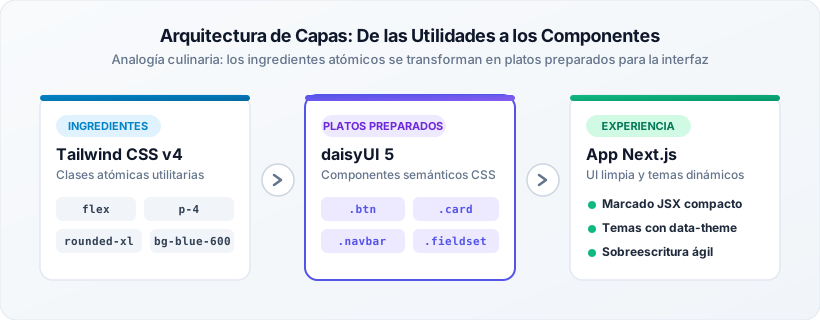
The Culinary Analogy: Ingredients vs. Prepared Dishes
To understand the relationship between both tools, imagine you are in a professional kitchen:
- Tailwind CSS is the fresh ingredients: It provides flour, salt, spices, oil, and vegetables (atomic classes like
flex,p-4,rounded-xl,bg-blue-600). You have total control over every gram, but preparing a complete dish from scratch takes constant time and effort. - daisyUI is the dishes prepared by the chef: It gathers ingredients into balanced recipes ready to serve (semantic classes like
btn,card,navbar,alert,input). You save time and guarantee immediate visual consistency. - The perfect combination: If you order a prepared dish (
btn btn-primary) and want to add a special touch of salt or alter the presentation, you can add any atomic Tailwind ingredient directly (rounded-full shadow-lg hover:scale-105).
Architectural Comparison
| Characteristic | Traditional CSS / BEM | React Components (MUI, Chakra) | daisyUI 5 + Tailwind v4 |
|---|---|---|---|
| JavaScript Overhead | Zero (only .css stylesheets). | High (heavy JS wrappers, listeners, larger bundle size). | Zero: 100% compiled pure CSS classes. |
| DOM Markup Control | High, but manual. | Low (closed abstractions with proprietary props). | Total: native HTML5 tags (<button>, <dialog>, <input>). |
| Theme Support | Manual via CSS selectors. | Requires React Providers and Contexts at runtime. | Native and dynamic via data-theme attribute and CSS variables. |
| Visual Customization | Writing new CSS rules. | Overriding themes with cumbersome JavaScript objects. | Instant using any Tailwind utility class. |
2. Installation in Next.js with Tailwind v4
In modern projects configured with Next.js 16 (App Router) and Tailwind CSS v4, daisyUI version 5 is installed as a development dependency and registered directly in the main stylesheet using the @plugin directive:
npm i -D daisyui@latest
Once the dependency is installed, open src/app/globals.css (or app/globals.css) and add the registration directive immediately after the Tailwind import:
@import "tailwindcss";
@plugin "daisyui";
If you want to define active themes and configure automatic light and dark themes, you can pass a configuration block to the plugin:
@import "tailwindcss";

@plugin "daisyui" {
  themes: light --default, dark --prefersdark, cupcake;
}
In previous versions (Tailwind v3), plugins had to be imported in the plugins: [] property of tailwind.config.js. In Tailwind v4, thanks to the CSS-First architecture of the Oxide engine, all plugins connect via the standard statement @plugin "daisyui";.
3. Catalog of Essential Components
daisyUI offers an extensive catalog of semantic components. Next, we will examine the most commonly used components in interactive web applications.
1. Buttons (btn)
The base .btn class provides standardized touch height, proportional padding, semibold typography, and interactive transitions for :hover and :active states.
- Base class:
btn - Semantic color variants:
btn-primary,btn-secondary,btn-accent,btn-neutral,btn-info,btn-success,btn-warning,btn-error - Visual style variants:
btn-outline(transparent background with colored border),btn-ghost(no background or border until hover),btn-soft(dimmed background),btn-link(hyperlink appearance) - Size modifiers:
btn-xs,btn-sm,btn-md(default size),btn-lg,btn-xl - Shapes and layout:
btn-circle(circular button for icons),btn-square(square button),btn-block(full width)
export function ButtonVariants() {
  return (
    <div className="flex flex-wrap items-center gap-3">
      {/* Buttons by intention color */}
      <button className="btn btn-primary">Save Changes</button>
      <button className="btn btn-secondary">Edit Profile</button>
      <button className="btn btn-accent">Featured</button>

      {/* Style variants */}
      <button className="btn btn-outline btn-primary">Outline</button>
      <button className="btn btn-ghost">Cancel</button>

      {/* Size variants */}
      <button className="btn btn-primary btn-sm">Small</button>
      <button className="btn btn-primary btn-lg">Large</button>
    </div>
  );
}
2. Cards (card)
The card component organizes hierarchical blocks of information (such as product listings, posts, or user profiles). Its internal structure consists of semantic sub-elements:
- Base container:
card(typically accompanied bybg-base-100 shadow-sm) - Internal body:
card-body(applies standard internal padding) - Title:
card-title(prominent typography with calibrated spacing) - Actions zone:
card-actions(aligns buttons at the end withjustify-end) - Media container:
<figure>(for images that respect the card's rounded borders) - Visual variants:
card-border(adds subtle border),card-dash(dashed border),card-side(lays out image and content horizontally)
export function UserCardPreview() {
  return (
    <div className="card bg-base-100 w-full max-w-sm shadow-md card-border">
      <figure className="px-6 pt-6">
        <img
          src="https://images.unsplash.com/photo-1534528741775-53994a69daeb?w=300"
          alt="User avatar"
          className="rounded-full w-24 h-24 object-cover border-2 border-primary"
        />
      </figure>
      <div className="card-body items-center text-center">
        <h2 className="card-title text-base-content">Valentina Rivas</h2>
        <span className="badge badge-primary">UI/UX Designer</span>
        <p className="text-sm text-base-content/70 mt-1">
          Specialist in design systems and accessible interaction for web platforms.
        </p>
        <div className="card-actions justify-end mt-4">
          <button className="btn btn-sm btn-outline">Message</button>
          <button className="btn btn-sm btn-primary">View Profile</button>
        </div>
      </div>
    </div>
  );
}
3. Badges (badge)
Badges serve to highlight numeric counters, activity statuses, or brief categories.
- Base class:
badge - Colors:
badge-primary,badge-secondary,badge-accent,badge-neutral,badge-info,badge-success,badge-warning,badge-error - Styles:
badge-outline,badge-soft,badge-dash - Sizes:
badge-xs,badge-sm,badge-md,badge-lg,badge-xl
export function BadgeExamples() {
  return (
    <div className="flex items-center gap-2">
      <span className="badge badge-success">Active</span>
      <span className="badge badge-warning badge-outline">In Review</span>
      <span className="badge badge-error badge-soft">Suspended</span>
      <span className="badge badge-info badge-sm">New</span>
    </div>
  );
}
4. Alerts (alert)
Alerts communicate relevant contextual notifications. They feature uniform spacing and are recommended to be structured with the accessibility attribute role="alert".
- Base class:
alert - Intention variants:
alert-info,alert-success,alert-warning,alert-error - Styles:
alert-soft(light background with soft contrast),alert-outline,alert-dash - Orientation:
alert-vertical(on narrow screens) oralert-horizontal
export function AlertNotification() {
  return (
    <div role="alert" className="alert alert-success shadow-sm">
      <svg
        xmlns="http://www.w3.org/2000/svg"
        className="h-6 w-6 shrink-0 stroke-current"
        fill="none"
        viewBox="0 0 24 24"
      >
        <path
          strokeLinecap="round"
          strokeLinejoin="round"
          strokeWidth="2"
          d="M9 12l2 2 4-4m6 2a9 9 0 11-18 0 9 9 0 0118 0z"
        />
      </svg>
      <div>
        <h3 className="font-bold">Operation successful!</h3>
        <p className="text-xs">User data has been synchronized with the server.</p>
      </div>
      <button className="btn btn-sm btn-ghost">Dismiss</button>
    </div>
  );
}
5. Forms and Inputs (input and fieldset)
In daisyUI 5, the classes input-bordered, form-control, and label-text do not exist.
Inputs now feature a native border by default. To group labels, fields, and helper texts, daisyUI 5 adopts standard HTML5 semantics using the following classes:
fieldset: Main container for the form group.fieldset-legend: Legend acting as a descriptive field title.input: Input field with base focus and contrast styles.label: Paragraph or descriptive label for helper text or error messages.
- Base field class:
input - State colors:
input-primary,input-secondary,input-accent,input-info,input-success,input-warning,input-error - Sizes:
input-xs,input-sm,input-md,input-lg,input-xl
export function InputFieldset() {
  return (
    <fieldset className="fieldset w-full max-w-sm">
      <legend className="fieldset-legend">Institutional email</legend>
      <input
        type="email"
        placeholder="user@icesi.edu.co"
        className="input input-primary w-full"
      />
      <p className="label text-base-content/70">
        Use the email registered with the academic system.
      </p>
    </fieldset>
  );
}
6. Navigation Bar (navbar)
The navbar component manages the application's top header. It can be structured using the subdivisions navbar-start, navbar-center, and navbar-end, or using flexbox utility classes like flex-1 and flex-none.
export function AppNavbar() {
  return (
    <header className="navbar bg-base-100 shadow-sm px-4">
      <div className="flex-1">
        <a className="btn btn-ghost text-xl font-bold text-primary">
          DocuKelo App
        </a>
      </div>
      <div className="flex-none gap-2">
        <input
          type="text"
          placeholder="Search courses..."
          className="input input-sm w-36 sm:w-64"
        />
        <button className="btn btn-sm btn-primary">New Project</button>
      </div>
    </header>
  );
}
7. Menus (menu)
The menu component organizes vertical or horizontal navigation lists. It is ideal for sidebars or dropdown menus.
- Base class:
menu - Orientation:
menu-vertical(default) ormenu-horizontal - Sizes:
menu-xs,menu-sm,menu-md,menu-lg - Section titles:
menu-title
export function SidebarMenu() {
  return (
    <ul className="menu bg-base-200 rounded-box w-56 p-2">
      <li className="menu-title">Main Panel</li>
      <li><a>Overview</a></li>
      <li>
        <a className="active">Users</a>
      </li>
      <li><a>Settings</a></li>
      <li className="menu-title">Security</li>
      <li><a className="text-error">Sign Out</a></li>
    </ul>
  );
}
8. Dropdowns (dropdown)
The dropdown component displays popover panels or floating lists anchored to a trigger element.
- Container:
dropdown - Pop-up content:
dropdown-content(requiresz-10orz-50to position above other elements) - Position:
dropdown-end(aligned to the right),dropdown-top,dropdown-bottom,dropdown-left,dropdown-right - Opening: via focus (
tabIndex="0") or via hover (dropdown-hover)
export function UserDropdown() {
  return (
    <div className="dropdown dropdown-end">
      <div tabIndex={0} role="button" className="btn btn-ghost btn-circle avatar">
        <div className="w-10 rounded-full bg-primary text-primary-content flex items-center justify-center font-bold">
          VR
        </div>
      </div>
      <ul
        tabIndex={0}
        className="menu menu-sm dropdown-content bg-base-100 rounded-box z-50 mt-3 w-52 p-2 shadow-lg border border-base-200"
      >
        <li className="menu-title">Valentina Rivas</li>
        <li><a>My Account</a></li>
        <li><a>Preferences</a></li>
        <div className="divider my-1"></div>
        <li><a className="text-error">Sign Out</a></li>
      </ul>
    </div>
  );
}
9. Modals (modal)
daisyUI 5 implements modals leveraging the native HTML5 <dialog> element. This delivers superior accessibility (native focus management, Escape key handling, and screen reader support) without external JavaScript libraries.
- Container:
<dialog id="id_modal" className="modal"> - Content box:
modal-box - Action buttons:
modal-action - Click-outside dismissal:
modal-backdrop - Trigger: Invoked using the browser's native
showModal()method
'use client';

export function DeleteConfirmModal() {
  const openModal = () => {
    const modal = document.getElementById('confirm_modal') as HTMLDialogElement | null;
    modal?.showModal();
  };

  return (
    <div>
      <button onClick={openModal} className="btn btn-error btn-sm">
        Delete Item
      </button>

      <dialog id="confirm_modal" className="modal">
        <div className="modal-box">
          <h3 className="font-bold text-lg text-base-content">Are you sure?</h3>
          <p className="py-4 text-sm text-base-content/70">
            This action will permanently delete the user and cannot be undone.
          </p>
          <div className="modal-action">
            <form method="dialog" className="flex gap-2">
              <button className="btn btn-ghost">Cancel</button>
              <button className="btn btn-error">Confirm Deletion</button>
            </form>
          </div>
        </div>
        {/* Interactive backdrop to close on outside click */}
        <form method="dialog" className="modal-backdrop">
          <button>close</button>
        </form>
      </dialog>
    </div>
  );
}
10. Data Tables (table)
The table component styles structured tables with stylized headers, subtle borders, and row states.
- Base class:
table - Visual variants:
table-zebra(alternating rows with subtle background),table-pin-rows(pins headers while scrolling),table-pin-cols(pins columns) - Sizes:
table-xs,table-sm,table-md,table-lg
export function UserTable() {
  return (
    <div className="overflow-x-auto w-full">
      <table className="table table-zebra">
        <thead>
          <tr>
            <th>User</th>
            <th>Role</th>
            <th>Status</th>
            <th className="text-right">Actions</th>
          </tr>
        </thead>
        <tbody>
          <tr>
            <td className="font-semibold">Ana Pérez</td>
            <td>Instructor</td>
            <td><span className="badge badge-success badge-sm">Active</span></td>
            <td className="text-right">
              <button className="btn btn-ghost btn-xs">Edit</button>
            </td>
          </tr>
          <tr>
            <td className="font-semibold">Carlos Gómez</td>
            <td>Student</td>
            <td><span className="badge badge-warning badge-sm">Pending</span></td>
            <td className="text-right">
              <button className="btn btn-ghost btn-xs">Edit</button>
            </td>
          </tr>
        </tbody>
      </table>
    </div>
  );
}
11. Tabs (tabs)
The tabs component organizes switchable content sections.
- Container:
tabs - Style variants:
tabs-box(pill-box style in container box),tabs-lift(folder-tab lifted style),tabs-border(subtle bottom border) - Individual tab:
tab - Active tab:
tab-active
export function NavigationTabs() {
  return (
    <div role="tablist" className="tabs tabs-box w-full max-w-md">
      <button role="tab" className="tab tab-active">Sign In</button>
      <button role="tab" className="tab">Register</button>
      <button role="tab" className="tab">Recover Access</button>
    </div>
  );
}
4. Theme System and Customization
One of daisyUI's biggest appeals for digital environment designers is its declarative theme system. The entire visual look and feel of an application can transform in milliseconds without rewriting a single CSS selector.
The data-theme Attribute
daisyUI utilizes the standard HTML data-theme attribute. When applied to the <html> tag, it affects the entire application. When applied to a child container (such as a card or sidebar), it modifies styles exclusively for that DOM fragment:
<!-- Global theme for the entire application in app/layout.tsx -->
<html lang="en" data-theme="cupcake">
  <body>
    <main>
      <h1>Content with Cupcake theme</h1>

      <!-- This specific section forces dark theme independently of the rest -->
      <section data-theme="dark" class="p-6 rounded-box bg-base-100 text-base-content">
        <h2>Night Analysis Dashboard</h2>
        <button class="btn btn-primary">Dark Mode Action</button>
      </section>
    </main>
  </body>
</html>
Included Themes
daisyUI includes over 30 production-ready design themes:
- Classic:
light,dark,corporate,business - Colorful and playful:
cupcake,retro,cyberpunk,valentine,aqua,synthwave - Sleek and understated:
emerald,nord,dracula,luxury,night,dim
Automatic Light and Dark Theme Configuration
In src/app/globals.css, you can associate themes with default operating system modes using the --default and --prefersdark flags:
@import "tailwindcss";

@plugin "daisyui" {
  themes: light --default, dark --prefersdark, cupcake, corporate;
}
With this configuration:
- The
lighttheme is applied by default. - If the user's operating system has dark mode enabled (
prefers-color-scheme: dark), daisyUI automatically switches to thedarktheme.
Creating a Custom Theme: The Institutional Icesi Palette
To reflect the visual identity of a brand or institution, daisyUI 5 allows defining custom themes via the @plugin "daisyui/theme" directive.
Next, we will create the custom theme icesi, integrating the institutional color palette:
- Icesi Blue:
#5454e9(Primary action color) - Purple:
#865cf0(Secondary accent color) - Green:
#4cb979(Success and confirmation color) - Orange:
#e9683b(Highlight and interactivity color) - Yellow:
#e4eb60(Warning and attention color)
@import "tailwindcss";

@plugin "daisyui" {
  themes: light --default, dark --prefersdark, icesi;
}

@plugin "daisyui/theme" {
  name: "icesi";
  default: false;
  prefersdark: false;
  color-scheme: light;

  /* Brand colors and semantic roles */
  --color-primary: #5454e9;
  --color-primary-content: #ffffff;
  --color-secondary: #865cf0;
  --color-secondary-content: #ffffff;
  --color-accent: #e9683b;
  --color-accent-content: #ffffff;
  --color-success: #4cb979;
  --color-success-content: #ffffff;
  --color-warning: #e4eb60;
  --color-warning-content: #1e293b;
  --color-error: #ef4444;
  --color-error-content: #ffffff;
  --color-neutral: #1e293b;
  --color-neutral-content: #ffffff;
  --color-info: #5454e9;
  --color-info-content: #ffffff;

  /* Background surfaces and base text */
  --color-base-100: #ffffff;
  --color-base-200: #f8fafc;
  --color-base-300: #e2e8f0;
  --color-base-content: #0f172a;

  /* Rounded border radius */
  --radius-selector: 0.5rem;
  --radius-field: 0.5rem;
  --radius-box: 0.75rem;
}
To activate this institutional theme in your application, simply declare data-theme="icesi" on the root <html> element or on any container.
5. When to Use daisyUI and When Tailwind Utilities
The key to designing maintainable interfaces lies in understanding complementarity:
| Design Responsibility | Recommended Tool | Example Classes |
|---|---|---|
| Component identity and base styling | daisyUI | btn, card, alert, input, fieldset, modal |
| Colors adapting to active theme | daisyUI | bg-base-100, text-base-content, btn-primary, badge-secondary |
| Layout structure and distribution | Tailwind | grid, flex, gap-6, col-span-2, justify-between |
| Sizing and metric spacing | Tailwind | p-4, m-auto, w-full, max-w-md, min-h-screen |
| Responsive behavior | Tailwind | sm:flex-row, md:grid-cols-2, hidden lg:block |
| Micro-interactions and fine tuning | Tailwind | shadow-xl, hover:scale-105, transition-all, rounded-full |
How to Override a daisyUI Component with Utilities
Tailwind utility classes are compiled with the specificity required to override daisyUI defaults. Notice how we transform a standard button into a custom floating action button:
// daisyUI component with Tailwind atomic adjustments
<button className="btn btn-primary w-full md:w-auto px-8 rounded-full shadow-lg hover:shadow-2xl hover:scale-105 transition-all">
  Explore Platform
</button>
In this example:
btn btn-primaryprovides the base padding, thematic colors of the active theme, and interactive states.w-full md:w-autohandles responsive adaptability (full width on mobile, auto on desktop).rounded-fulloverrides the default card corner radius.shadow-lg hover:shadow-2xl hover:scale-105adds elevation and scale animation on hover.
6. Practical Case Study: Authentication Form
To consolidate what you have learned, let us examine the construction of the login form (LoginForm) corresponding to the week's case study.
The form implements:
- A centered card (
card bg-base-100 shadow-md card-border). - Accessible grouping with
fieldset,fieldset-legend, andinput. - Error or success notifications with
alert. - Themed submit button
btn btn-primary w-full. - Navigation links to the registration form.
'use client';

import { useState } from 'react';

export function LoginForm() {
  const [email, setEmail] = useState('');
  const [password, setPassword] = useState('');
  const [errorMessage, setErrorMessage] = useState<string | null>(null);

  const handleSubmit = (e: React.FormEvent) => {
    e.preventDefault();
    if (!email || !password) {
      setErrorMessage('Please enter your email and password.');
      return;
    }
    setErrorMessage(null);
    // Continue with submission to API (POST /auth/login)
  };

  return (
    <section className="min-h-screen bg-base-200 grid place-items-center px-4 py-12">
      <div className="card bg-base-100 w-full max-w-sm shadow-md card-border">
        <form onSubmit={handleSubmit} className="card-body" noValidate>
          {/* Form Header */}
          <h2 className="card-title text-2xl justify-center font-extrabold text-base-content">
            DocuKelo
          </h2>
          <p className="text-center text-sm text-base-content/70">
            Enter your credentials to access the platform
          </p>

          {/* Conditional Error Alert */}
          {errorMessage && (
            <div role="alert" className="alert alert-error alert-soft text-xs py-2 mt-2">
              <svg
                xmlns="http://www.w3.org/2000/svg"
                className="h-4 w-4 shrink-0 stroke-current"
                fill="none"
                viewBox="0 0 24 24"
              >
                <path
                  strokeLinecap="round"
                  strokeLinejoin="round"
                  strokeWidth="2"
                  d="M10 14l2-2m0 0l2-2m-2 2l-2-2m2 2l2 2m7-2a9 9 0 11-18 0 9 9 0 0118 0z"
                />
              </svg>
              <span>{errorMessage}</span>
            </div>
          )}

          {/* Email Group */}
          <fieldset className="fieldset mt-2">
            <legend className="fieldset-legend">Email address</legend>
            <input
              type="email"
              value={email}
              onChange={(e) => setEmail(e.target.value)}
              placeholder="you@email.com"
              className="input w-full"
              required
            />
          </fieldset>

          {/* Password Group */}
          <fieldset className="fieldset mt-2">
            <legend className="fieldset-legend">Password</legend>
            <input
              type="password"
              value={password}
              onChange={(e) => setPassword(e.target.value)}
              placeholder="••••••••"
              className="input w-full"
              required
            />
          </fieldset>

          {/* Submit Button */}
          <button type="submit" className="btn btn-primary w-full mt-4">
            Sign In
          </button>

          {/* Link to Register */}
          <p className="text-center text-xs text-base-content/70 mt-3">
            Don't have an account?{' '}
            <a href="/register" className="link link-primary font-semibold">
              Register here
            </a>
          </p>
        </form>
      </div>
    </section>
  );
}
Interactive Preview
Below you can interact live with the authentication prototype styled entirely with daisyUI 5 and Tailwind CSS. You can toggle between Login, Register, and App views, as well as simulate mobile view: