Tailwind CSS
In previous lessons, we organized the structure of our web application by features and learned to communicate the interface with backend services. However, to create memorable and professional digital experiences, we need an agile, maintainable, and consistent visual design system.
In this lesson, we will explore Tailwind CSS v4, the most modern utility-first style engine for the web. As digital environment designers, you will discover how Tailwind translates design fundamentals (typographic scales, spacing rhythms, coherent color palettes, and mobile-first responsive design) directly into the code of your interfaces, without having to write complex stylesheets or deal with arbitrary class names.
1. Utility-First
The Tailwind CSS paradigm is known as Utility-First. Instead of writing custom CSS selectors for each component class (as in traditional BEM) or injecting imperative styles directly into the DOM, Tailwind provides highly specialized atomic classes (for example, p-4, flex, bg-blue-600, rounded-xl) that compose the design directly within the JSX markup.
It is common for developers new to Tailwind to ask: isn't using utility classes the same as going back to inline styles (style={{ ... }})? The technical answer is an emphatic no. Fundamental architectural differences exist between both approaches:
| Feature | Inline Styles (style={{ ... }}) | Traditional CSS / BEM (.css) | Utility-First (Tailwind CSS v4) |
|---|---|---|---|
| Design Scale | Arbitrary scattered values (padding: 15px, 18px). Visual inconsistency. | Defined manually using CSS variables (--spacing-4). | Standardized numerical scale based on multiples of 4px (p-1, p-2, p-4). |
| Pseudo-classes | Impossible to use :hover, :focus, :active, or :disabled without JavaScript. | Native support by writing rules for each selector. | Direct declarative prefixes (hover:bg-blue-700, focus:ring-2, active:scale-95). |
| Responsive Design | Impossible to use Media Queries in the style attribute. | Requires @media blocks scattered across multiple files. | Integrated screen modifiers (sm:, md:, lg:, xl:) with a mobile-first approach. |
| Production Bundle Size | Massive duplication in the HTML DOM for each node. | CSS grows continuously as the project adds new screens. | Zero-runtime and Automatic Purging: compiler generates only the classes actually used (~15-20 KB). |
| Browser Cache | Each element sends its own bytes; no caching. | Cached as an independent static .css file. | Global static CSS file that is highly compressible and cacheable on CDN. |
Reference Component: User Card
To illustrate this approach within our course domain, let's examine how a user card (UserCard) is composed by combining utility classes for spacing, typography, borders, states, and smooth transitions:
// User card styled entirely with Tailwind CSS v4 utility classes
interface UserCardProps {
  id: string;
  name: string;
  role: string;
  email: string;
  isActive: boolean;
  onToggleStatus: (id: string) => void;
}

export function UserCard({
  id,
  name,
  role,
  email,
  isActive,
  onToggleStatus,
}: UserCardProps) {
  return (
    <article className="flex flex-col justify-between p-6 bg-white dark:bg-gray-800 rounded-2xl border border-gray-100 dark:border-gray-700 shadow-sm hover:shadow-md transition-all duration-200">
      <div>
        {/* Header: Avatar and Role */}
        <div className="flex items-center justify-between mb-4">
          <div className="flex items-center gap-3">
            <div className="w-10 h-10 rounded-full bg-blue-100 dark:bg-blue-950 text-blue-600 dark:text-blue-300 flex items-center justify-center font-bold text-sm">
              {name.slice(0, 2).toUpperCase()}
            </div>
            <div>
              <h3 className="text-base font-bold text-gray-900 dark:text-white leading-tight">
                {name}
              </h3>
              <p className="text-xs text-gray-500 dark:text-gray-400">
                {email}
              </p>
            </div>
          </div>
          <span className="text-xs font-semibold px-2.5 py-1 rounded-full bg-blue-50 dark:bg-blue-900/30 text-blue-600 dark:text-blue-300">
            {role}
          </span>
        </div>

        <p className="text-sm text-gray-600 dark:text-gray-400">
          Registered member in the system with view permissions.
        </p>
      </div>

      {/* Card Footer: Status and Action */}
      <div className="mt-6 pt-4 border-t border-gray-100 dark:border-gray-700 flex items-center justify-between">
        <span
          className={`text-xs font-semibold ${
            isActive
              ? 'text-emerald-600 dark:text-emerald-400'
              : 'text-amber-600 dark:text-amber-400'
          }`}
        >
          {isActive ? 'Active' : 'Inactive'}
        </span>
        <button
          onClick={() => onToggleStatus(id)}
          className="px-4 py-2 text-sm font-medium text-white bg-blue-600 hover:bg-blue-700 active:scale-95 rounded-lg transition-transform cursor-pointer"
        >
          {isActive ? 'Suspend' : 'Activate'}
        </button>
      </div>
    </article>
  );
}
Notice how there was no need to create a UserCard.module.css file with invented class names (.card-footer-action-button-active). The card describes with mathematical precision its geometry, its light and dark mode colors, and its interactive states directly on the JSX element.
2. Next.js Configuration
When initializing a modern Next.js project using the official npx create-next-app@latest command, the environment is automatically configured with Tailwind CSS v4 and Next.js 16 (App Router). In previous versions (Tailwind v3), configuration required maintaining a tailwind.config.js file with content paths so the scanner could detect classes, as well as configuring plugins in JavaScript arrays.
In Tailwind CSS v4, the architecture was radically simplified with the Oxide engine (built in Rust and Lightning CSS):
- CSS-First Configuration:
tailwind.config.jsno longer exists. Everything is configured directly in the main stylesheet (src/app/globals.cssorapp/globals.css). - Automatic Source Detection: Tailwind v4 automatically detects all template and component files (
.tsx,.jsx,.ts,.html) without needing acontentarray specified. - PostCSS Integration: Connected via the official
@tailwindcss/postcsspackage.
Let's look at the standard configuration in the global stylesheet:
@import "tailwindcss";
And its corresponding PostCSS configuration file in the project root:
const config = {
  plugins: {
    "@tailwindcss/postcss": {},
  },
};

export default config;
In Tailwind v3, three separate directives were used: @tailwind base;, @tailwind components;, and @tailwind utilities;. In Tailwind v4, these directives were replaced by a single standard CSS statement: @import "tailwindcss";.
3. Spacing
Spacing in Tailwind is controlled through margin and padding classes. Tailwind uses a numerical scale where each number represents a multiple of 0.25rem (4px).
Margin
Margin controls the outer space around an element. It can be applied in all directions:
m-{size}: margin on all sidesmx-{size}: horizontal margin (left and right)my-{size}: vertical margin (top and bottom)mt-{size},mr-{size},mb-{size},ml-{size}: specific margin per side
Example:
m-4: margin of 1rem (16px) on all sides
mx-8 my-2: horizontal margin of 2rem, vertical of 0.5rem
mt-6: margin-top of 1.5rem (24px)
Padding
Padding controls the inner space of an element (between content and border). It uses the same naming convention as margin:
p-{size}: padding on all sidespx-{size}: horizontal paddingpy-{size}: vertical paddingpt-{size},pr-{size},pb-{size},pl-{size}: specific padding per side
Example:
p-2: padding of 0.5rem (8px) on all sides
px-8 py-4: horizontal padding of 2rem, vertical of 1rem
pt-6 pb-2: padding-top of 1.5rem, padding-bottom of 0.5rem
4. Dimensions
Dimensions in Tailwind allow you to control the width and height of elements. Tailwind provides utility classes for fixed sizes, percentages, and special sizes such as viewport.
Width
Width controls the horizontal size of an element. Tailwind offers several options:
w-{number}: width on the Tailwind scale (w-4 = 1rem, w-64 = 16rem)w-{fraction}: percentage-based width (w-1/2 = 50%, w-1/3 = 33.33%, w-full = 100%)w-screen: viewport width (100vw)w-auto: automatic width based on content
Example:
w-full: 100% width of the container
w-1/2: 50% width of the container
w-64: fixed width of 16rem (256px)
w-auto: width based on content
Height
Height controls the vertical size of an element. Similar to width, it offers multiple options:
h-{number}: height on the Tailwind scale (h-4 = 1rem, h-64 = 16rem)h-full: 100% height of the containerh-screen: viewport height (100vh)h-auto: automatic height based on content
Example:
h-full: 100% height
h-32: height of 8rem (128px)
h-16: height of 4rem (64px)
h-auto
Size (Simultaneous Width and Height)
The size-{size} class sets the same value for both width and height, useful for square elements:
size-16: width and height of 4rem (64px)size-32: width and height of 8rem (128px)
Example:
size-16
size-24
size-32
Min/Max Width and Height
Tailwind allows setting minimum and maximum limits for dimensions:
min-w-{size}: minimum widthmax-w-{size}: maximum width (max-w-md = 28rem, max-w-lg = 32rem, max-w-xl = 36rem)min-h-{size}: minimum heightmax-h-{size}: maximum height
Example:
max-w-md: maximum width of 28rem (448px). This text has a width limit regardless of the container size.
min-h-32: minimum height of 8rem (128px)
max-h-20: maximum height of 5rem (80px). If the content is too long, a scrollbar will appear. This is an example of long text that exceeds the set maximum height to demonstrate this behavior.
5. Typography
Typography in Tailwind allows you to control the visual appearance of text through utility classes. You can modify size, weight, alignment, color, and more text properties.
Font Size
Font size controls how large or small text appears. Tailwind offers a predefined scale:
text-xs: extra small (0.75rem / 12px)text-sm: small (0.875rem / 14px)text-base: base (1rem / 16px)text-lg: large (1.125rem / 18px)text-xl: extra large (1.25rem / 20px)text-2xltotext-9xl: progressively larger sizes
Example:
text-xs: Extra small text (12px)
text-sm: Small text (14px)
text-base: Base text (16px)
text-lg: Large text (18px)
text-xl: Extra large text (20px)
text-2xl: 2XL text (24px)
text-3xl: 3XL text (30px)
Font Weight
Font weight controls how thick or thin typography appears:
font-thin: weight 100font-light: weight 300font-normal: weight 400font-medium: weight 500font-semibold: weight 600font-bold: weight 700font-extrabold: weight 800font-black: weight 900
Example:
font-thin: Very thin text (100)
font-light: Light text (300)
font-normal: Normal text (400)
font-medium: Medium text (500)
font-semibold: Semibold text (600)
font-bold: Bold text (700)
font-extrabold: Extra bold text (800)
font-black: Black text (900)
Text Align
Text alignment controls how text is distributed horizontally:
text-left: left-alignedtext-center: centeredtext-right: right-alignedtext-justify: justified
Example:
text-left: This text is left-aligned
text-center: This text is centered
text-right: This text is right-aligned
text-justify: This text is justified, meaning it is evenly distributed between the left and right margins.
Text Color
Tailwind provides an extensive color palette for text:
text-{color}-{shade}: exampletext-blue-500,text-red-600- Available colors: gray, red, yellow, green, blue, indigo, purple, pink, etc.
- Shades: from 50 (lightest) to 950 (darkest)
Example:
text-red-500: Red text
text-blue-500: Blue text
text-green-500: Green text
text-purple-500: Purple text
text-amber-500: Amber text
text-gray-500: Gray text
Text Decoration and Transform
Tailwind also offers classes for text decoration and transformation:
underline: underlinedline-through: strikethroughuppercase: uppercaselowercase: lowercasecapitalize: capitalized first letter
Example:
underline: This text is underlined
line-through: This text is struck through
uppercase: this text is uppercase
lowercase: THIS TEXT IS LOWERCASE
capitalize: each word starts with a capital letter
Line Height
Line height controls the vertical spacing between lines of text:
leading-none: no extra spacingleading-tight: tight spacingleading-normal: normal spacingleading-relaxed: relaxed spacingleading-loose: loose spacing
Example:
leading-none: This is a line of text with line height without extra spacing. Notice how the lines are very close together.
leading-normal: This is a line of text with normal line height. It is the standard and comfortable spacing for reading.
leading-loose: This is a line of text with loose line height. There is plenty of space between lines.
6. Colors
Colors in Tailwind are fundamental to bringing your designs to life. Tailwind offers an extensive color palette with different shades that you can apply to backgrounds, text, borders, and more.
Background Color
Background color is applied with the bg-{color}-{shade} class:
- Available colors: slate, gray, red, orange, yellow, green, blue, indigo, purple, pink, etc.
- Shades: 50 (very light) up to 950 (very dark)
- Examples:
bg-blue-500,bg-red-600,bg-green-400
Example:
bg-red-500: Red background
bg-blue-500: Blue background
bg-green-500: Green background
bg-purple-500: Purple background
bg-amber-500: Amber background
bg-pink-500: Pink background
Color Shades
Each color has different shades ranging from 50 to 950. The higher the number, the darker the color:
Example:
bg-blue-50: Very light blue
bg-blue-100: Light blue
bg-blue-300: Medium light blue
bg-blue-500: Base blue
bg-blue-600: Medium dark blue
bg-blue-800: Dark blue
bg-blue-900: Very dark blue
Border Color
Borders can also have color using border-{color}-{shade}. Remember that you need to define the border width first:
border: 1px borderborder-2: 2px borderborder-4: 4px borderborder-8: 8px border
Example:
border-2 border-red-500: Red border
border-4 border-blue-500: 4px blue border
border-8 border-green-500: Thick 8px green border
border-2 border-purple-500 border-dashed: Dashed purple border
Opacity
You can control the opacity of background colors, text, and borders using the opacity modifier:
bg-{color}-{shade}/{opacity}: examplebg-blue-500/50(50% opacity)- Common opacities: 25, 50, 75, 100
Example:
bg-blue-500/100: Opacity 100% (fully opaque)
bg-blue-500/75: Opacity 75%
bg-blue-500/50: Opacity 50%
bg-blue-500/25: Opacity 25% (very transparent)
Gradients
In Tailwind CSS v4, linear gradient utilities were renamed from bg-gradient-to-* to bg-linear-to-* (bg-linear-to-r, bg-linear-to-b, bg-linear-to-br, etc.) to align with the CSS standard specification (linear-gradient). The previous v3 syntax remains common in existing projects, but modern projects like the one in this course use bg-linear-to-*.
Tailwind makes it intuitive to create linear gradients by combining direction with color stop points:
bg-linear-to-r: linear gradient from left to rightbg-linear-to-b: linear gradient from top to bottombg-linear-to-br: linear gradient toward bottom-right cornerfrom-{color}: starting colorto-{color}: ending colorvia-{color}: intermediate color (optional)
Example:
bg-linear-to-r from-blue-500 to-purple-500 (v3: bg-gradient-to-r)
bg-linear-to-b from-red-500 to-amber-500 (v3: bg-gradient-to-b)
bg-linear-to-r from-green-500 via-blue-500 to-purple-500
bg-linear-to-br from-pink-500 to-purple-500
7. Flexbox
Flexbox and Grid are foundational layout systems in CSS that Tailwind makes very easy to use. They allow you to create complex, responsive layouts efficiently. Flexbox is ideal for arranging elements in one direction (horizontal or vertical) and controlling how they are distributed and aligned.
Flex Direction
Flex direction controls whether elements are aligned horizontally or vertically:
flex-row: items in a row (horizontal, default)flex-col: items in a column (vertical)flex-row-reverse: reverse rowflex-col-reverse: reverse column
Example:
flex-row:
1
2
3
flex-col:
1
2
3
Justify Content (Horizontal Alignment)
Controls how items are distributed along the main axis:
justify-start: at startjustify-center: centeredjustify-end: at endjustify-between: space between itemsjustify-around: space around items
Example:
justify-start:
A
B
C
justify-center:
A
B
C
justify-between:
A
B
C
Align Items (Vertical Alignment)
Controls how items are aligned along the cross axis:
items-start: at startitems-center: centereditems-end: at enditems-stretch: stretched (default)
Example:
items-start:
A
B
C
items-center:
A
B
C
Gap (Space Between Items)
Gap creates space between flex items without needing margins:
gap-{size}: space in all directionsgap-x-{size}: horizontal spacegap-y-{size}: vertical space
Example:
gap-2 (8px):
1
2
3
gap-8 (32px):
1
2
3
8. Grid
Grid is perfect for creating complex two-dimensional layouts with rows and columns.
Grid Columns
Defines how many columns your grid will have:
grid-cols-{number}: number of columns (grid-cols-2, grid-cols-3, grid-cols-4, etc.)grid-cols-12: 12-column system (like Bootstrap)
Example:
grid-cols-2:
1
2
3
4
grid-cols-3:
1
2
3
4
5
6
Grid Rows
Defines how many rows your grid will have:
grid-rows-{number}: number of rows (grid-rows-2, grid-rows-3, etc.)
Example:
grid-rows-3:
1
2
3
4
5
6
Col Span (Column Expansion)
Allows an element to span across multiple columns:
col-span-{number}: expands the element across N columnscol-span-full: occupies all available columns
Example:
grid-cols-3 with col-span:
col-span-3 (spans 3 columns)
col-span-2
1
1
col-span-2
Grid Gap
Similar to Flexbox, Grid also uses gap to space elements:
gap-{size}: space between rows and columns
Example:
gap-2 (8px):
1
2
3
gap-6 (24px):
1
2
3
9. Positioning
Positioning in Tailwind controls how an element is placed on the page. This is fundamental for creating complex layouts, modals, floating menus, and more.
Position Types
Tailwind offers different positioning types:
static: normal position (default)relative: position relative to its original positionabsolute: absolute position relative to the positioned parent containerfixed: fixed position relative to the viewportsticky: hybrid between relative and fixed
Example:
relative:
relative top-10 left-10: Shifted 10px from its original position
absolute:
absolute top-10 right-10
absolute bottom-10 left-10
Positioning Values
You can control exactly where an element is positioned:
top-{size},right-{size},bottom-{size},left-{size}inset-{size}: applies the same value to all sides- Common values: 0, 1, 2, 4, 8, 16, etc. (in multiples of 0.25rem)
Example:
top-0 left-0
top-0 right-0
Centered
bottom-0 left-0
bottom-0 right-0
Z-Index (Stacking Order)
The z-index controls which elements appear on top of others:
z-0: index 0z-10,z-20,z-30,z-40,z-50: predefined indices- Higher number = higher in the stack
Example:
z-10 (above)
z-20 (higher)
z-30 (on top)
10. States and Pseudo-Classes
States and pseudo-classes in Tailwind allow applying styles when the user interacts with elements or when certain conditions are met.
Hover
The hover state applies styles when the cursor is over an element:
- Syntax:
hover:{class} - Example:
hover:bg-blue-500,hover:text-white
Example:
Hover over the buttons:
Focus
The focus state applies when an input or interactive element is focused:
- Syntax:
focus:{class} - Example:
focus:border-blue-500,focus:ring-2
Example:
Click on the inputs to see the effect:
Active
The active state applies while clicking an element:
- Syntax:
active:{class} - Example:
active:bg-blue-700,active:scale-95
Example:
Click and hold:
Disabled
The disabled state applies styles to disabled elements:
- Syntax:
disabled:{class} - Example:
disabled:opacity-50,disabled:cursor-not-allowed
Example:
Buttons with disabled state:
Group Hover
Group hover applies styles to an element when hovering over its parent container:
- Syntax: Apply
groupto the parent andgroup-hover:{class}to the child - Useful for cards and complex components
Example:
Hover over the cards:
Card 1
group-hover on the title
Card 2
group-hover with transform
11. Customization
Tailwind CSS allows customizing values beyond its predefined scale using arbitrary values. This gives you the flexibility to use exact values when needed, without leaving Tailwind's utility system.
Arbitrary Values
Arbitrary values allow specifying custom values for any Tailwind class using square brackets [].
6. Custom Colors, Borders, Opacity, and Gradients
You can use any color in hexadecimal, RGB, HSL format, or even CSS color names:
bg-[#1da1f2]: custom background colortext-[rgb(255,0,0)]: text color in RGBborder-[#ff6347]: custom border color
Example:
bg-[#1da1f2]: Custom Twitter blue color
bg-[#ff6b6b]: Custom coral red color
border-[#fdcb6e] border-[3px]: Custom yellow border
text-[rgb(255,107,107)]: Text in RGB format
Custom Sizes
You can specify exact dimensions in px, rem, em, %, vw, vh, etc.:
w-[347px]: width of 347 pixelsh-[32rem]: height of 32remtext-[22px]: font size of 22pxp-[18px]: padding of 18px
Example:
w-[347px] h-[100px]: Exact width of 347px
w-[75%] p-[18px]: 75% width with custom padding
text-[22px]: Exact font size of 22 pixels
3. Custom Spacing: Margin and Padding
Create exact spacing for margin and padding:
m-[13px]: 13px marginp-[2.5rem]: 2.5rem paddinggap-[25px]: 25px gap between elements
Example:
p-[13px] mb-[25px]: Custom 13px padding
gap-[25px]
gap-[25px]
gap-[25px]
Custom Border Radius
Define exact border radii:
rounded-[12px]: 12px border radiusrounded-[50%]: perfect circle
Example:
rounded-[12px]
rounded-[25px]
rounded-[50%]
Custom Shadows
In Tailwind CSS v4, the shadow and border scales were readjusted for greater consistency:
- The base
shadowclass from v3 is now calledshadow-sm, while the legacyshadow-smbecameshadow-xs. - The modern scale includes
shadow-2xs,shadow-xs,shadow-sm,shadow-md,shadow-lg,shadow-xl, andshadow-2xl. - The same applies to border radii: the legacy
rounded-smis nowrounded-xs, androundedis equivalent torounded-sm.
Create custom shadow effects:
shadow-[0_4px_6px_rgba(0,0,0,0.1)]: custom shadow
Example:
shadow-[0_4px_6px_rgba(0,0,0,0.1)]: Soft shadow
shadow-[0_10px_30px_rgba(59,130,246,0.3)]: Blue shadow
shadow-[0_20px_50px_rgba(0,0,0,0.2)]: Pronounced shadow
Custom Font Weight and Line Height
Specify exact font weights and line heights:
font-[450]: custom font weightleading-[1.75]: specific line height
Example:
font-[350]: Font weight 350 (between light and normal)
font-[550]: Font weight 550 (between medium and semibold)
font-[650]: Custom font weight 650
leading-[1.75]: This line has a line height of 1.75, which provides comfortable spacing for reading. You can notice how the text breathes better with this custom spacing.
Custom Grid Template Columns/Rows
Define fully custom grid structures:
grid-cols-[200px_1fr_2fr]: columns with specific sizesgrid-rows-[100px_auto_100px]: custom rows
Example:
grid-cols-[200px_1fr_2fr]:
200px
1fr
2fr
grid-cols-[100px_auto_100px]:
100px
auto (expands)
100px
Custom Transforms
Apply custom CSS transforms:
rotate-[17deg]: custom rotationscale-[1.15]: specific scaletranslate-x-[13px]: exact translation
Example:
rotate-[17deg]
scale-[1.25]
-translate-y-[15px]
Combining Arbitrary Values
You can combine multiple arbitrary values to create unique designs:
Example:
Custom card with:
- bg-[#1da1f2]
- p-[24px]
- rounded-[15px]
- text-[19px]
- font-[550]
- shadow-[0_8px_20px_rgba(29,161,242,0.3)]
Custom gradient with shadow and rounded corners
bg-[linear-gradient(135deg,#667eea_0%,#764ba2_100%)]
Arbitrary CSS Properties
Tailwind also allows using fully custom CSS properties with square bracket syntax:
[clip-path:circle(50%)]: applies any CSS property[backdrop-filter:blur(10px)]: background effects
Example:
clip-path: circle
clip-path: polygon
Token Configuration with the @theme Directive (Tailwind v4)
In previous versions of Tailwind (v3), theme customization required a JavaScript tailwind.config.js file with a theme.extend object. In Tailwind CSS v4, configuration is 100% native in CSS via the @theme directive. This eliminates the need for external configuration files, improves build times thanks to the Oxide engine, and automatically exposes tokens as native CSS variables.
You can define brand colors, fonts, and new breakpoints directly in app/globals.css:
@import "tailwindcss";

/* Project design token definitions */
@theme {
  /* New accessible semantic colors such as bg-brand-primary, text-brand-primary */
  --color-brand-primary: #2563eb;
  --color-brand-secondary: #0d9488;
  --color-brand-accent: #f59e0b;
  --color-surface-card: #f8fafc;

  /* Custom typography */
  --font-display: "Inter", system-ui, sans-serif;

  /* Custom breakpoint for ultra-wide monitors */
  --breakpoint-3xl: 1920px;
}
When declaring --color-brand-primary, Tailwind automatically generates the entire corresponding utility family: bg-brand-primary, text-brand-primary, border-brand-primary, ring-brand-primary, and opacity variants such as bg-brand-primary/80.
12. Breakpoints and Responsive Design
Responsive design in Tailwind CSS is grounded in the Mobile-First philosophy. This means that any class applied without a breakpoint prefix applies to all devices, starting from the smallest screen (0px and up). The prefixes (sm:, md:, lg:, xl:, 2xl:) represent breakpoints where progressive enhancements are applied through @media (min-width: ...) rules.
System Default Breakpoints
Tailwind CSS v4 includes five standard predefined breakpoints:
| Prefix | Minimum Size (min-width) | Typical Device Type | Generated CSS Query |
|---|---|---|---|
| (no prefix) | 0px | Mobile phones in portrait mode | General base rule |
sm: | 640px | Large phones / Tablets in portrait mode | @media (min-width: 640px) |
md: | 768px | Tablets in landscape mode / Compact laptops | @media (min-width: 768px) |
lg: | 1024px | Standard laptops and desktop screens | @media (min-width: 1024px) |
xl: | 1280px | Widescreen desktop monitors | @media (min-width: 1280px) |
2xl: | 1536px | Large-format and high-resolution monitors | @media (min-width: 1536px) |
How Breakpoints Are Applied
Take grid-cols-1 md:grid-cols-2 lg:grid-cols-3. Each class applies from its width upward, and when two collide, the one with the larger prefix wins. Above you see where each applies; below, which columns each screen sees:
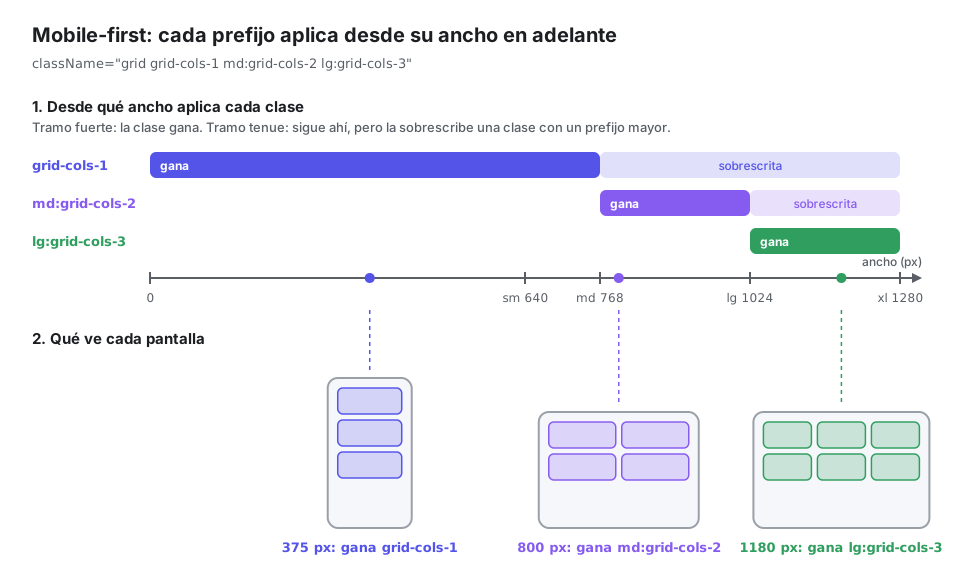
Technical Breakdown of the Diagram
- Mobile Base (
0px+): Establishes the minimum essential structure. For example, a single column (grid-cols-1), full width (w-full), and compact font sizes (text-sm). - Progressive Activation (
min-width): Unlike legacy desktop-first approaches that usedmax-widthto hide or shrink elements, the mobile-first approach adds complexity gradually. - Specific Override: If you declare
text-sm md:text-base lg:text-lg, a 390px mobile phone will usetext-sm; an 800px tablet will applytext-base; and a 1440px monitor will applytext-lg.
A very common mistake when starting with Tailwind is writing sm:grid-cols-1 md:grid-cols-2. The sm: prefix for a single column is redundant and harmful: on mobile screens below 640px the element would be left with no defined column rule. The correct approach is to write grid-cols-1 md:grid-cols-2, leaving the base rule unprefixed.
Implementation Example: Responsive User Directory
Let's see how to build a complete user profile grid that adapts smoothly from a mobile phone to a desktop monitor:
// Responsive grid scaling from 1 column (mobile) to 4 columns (large screen)
import { UserCard } from './UserCard';

interface UserItem {
  id: string;
  name: string;
  role: string;
  email: string;
  isActive: boolean;
}

interface UserGridProps {
  users: UserItem[];
  onToggleStatus: (id: string) => void;
}

export function UserGrid({ users, onToggleStatus }: UserGridProps) {
  return (
    <section className="w-full max-w-7xl mx-auto px-4 sm:px-6 lg:px-8 py-8">
      {/* Header with responsive layout: column on mobile, row on tablet/desktop */}
      <div className="flex flex-col md:flex-row md:items-center md:justify-between gap-4 mb-8">
        <div>
          <h2 className="text-2xl sm:text-3xl font-extrabold text-gray-900 dark:text-white tracking-tight">
            User Directory
          </h2>
          <p className="text-sm sm:text-base text-gray-500 dark:text-gray-400 mt-1">
            Manage registered platform members and supervise their roles
          </p>
        </div>

        {/* Actions: full width on mobile, auto on desktop */}
        <div className="flex items-center gap-3 w-full md:w-auto">
          <button className="w-full md:w-auto px-4 py-2.5 bg-blue-600 hover:bg-blue-700 text-white text-sm font-semibold rounded-xl shadow-sm transition-colors cursor-pointer">
            New User
          </button>
        </div>
      </div>

      {/* Adaptive responsive grid:
          - Mobile (< 768px): 1 column (grid-cols-1)
          - Tablet (≥ 768px): 2 columns (md:grid-cols-2)
          - Laptop (≥ 1024px): 3 columns (lg:grid-cols-3)
          - Widescreen Desktop (≥ 1280px): 4 columns (xl:grid-cols-4)
      */}
      <div className="grid grid-cols-1 md:grid-cols-2 lg:grid-cols-3 xl:grid-cols-4 gap-6">
        {users.map((user) => (
          <UserCard
            key={user.id}
            id={user.id}
            name={user.name}
            role={user.role}
            email={user.email}
            isActive={user.isActive}
            onToggleStatus={onToggleStatus}
          />
        ))}
      </div>
    </section>
  );
}
In the next document, we will explore daisyUI 5, a semantic component library built on Tailwind that will allow us to further accelerate development with ready-to-use buttons, cards, forms, and theming systems.