API Testing with Postman
In modern web application development, building backend controllers and services is only half the battle. To ensure that services respond consistently, process input payloads correctly, and reject malicious or malformed requests, having a rigorous HTTP endpoint testing and validation strategy is indispensable.
Postman is the industry-standard platform for designing, testing, documenting, and automating HTTP APIs. It allows backend developers to simulate client requests, inspect responses in real time, chain authentication flows using environment variables, and automate test suites before deploying to production.
1. Core Concepts and Theoretical Foundations
Why Use Postman Instead of CLI Tools?
While command-line tools like curl or lightweight extensions can dispatch basic HTTP requests, Postman provides a complete architecture for the API development lifecycle:
- Structured Visual Inspection: Automatic formatting of JSON payloads, HTTP header inspection, response latency analysis, and transfer size measurements.
- Modular Environment Management: Switch configuration variables (e.g., local development URLs vs. staging/cloud servers) with a single click without manually updating URLs.
- Reactive Request Chaining: Dynamically capture identifiers or JWT tokens returned by an authentication endpoint (such as
/auth/login) and automatically inject them into subsequent requests. - Assertion Automation: JavaScript-based test scripts to validate HTTP status codes, JSON response schemas, and response times.
- Full Suite Automation with Collection Runner: Sequentially execute entire collections for regression testing and continuous validation of endpoints.
Anatomy of the Postman Interface
Understanding the layout of panels and tools in Postman is critical for seamless and productive backend development.
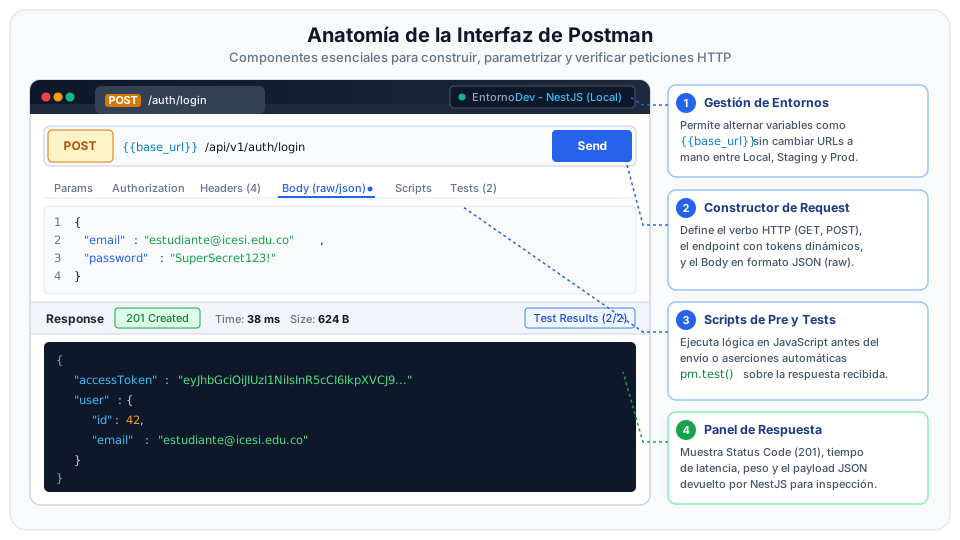
Technical Breakdown of Components
- Environment & Variable Manager: Located in the top right corner. Allows selecting the active environment (e.g., Dev - NestJS (Local)). When active, expressions in
{{variable_name}}format resolve dynamically in any field of the request. - Request Builder:
- HTTP Method Selector: Defines the semantic verb of the operation (
GETfor reading,POSTfor creation,PUT/PATCHfor updates,DELETEfor removal). - URL Bar: Target endpoint parameterized with environment variables (e.g.,
{{base_url}}/api/v1/auth/login). - Body Tab (raw / JSON): Editor where the HTTP payload is defined before transmission to the NestJS controllers.
- Params, Authorization, and Headers Tabs: Panels to configure query parameters, security credentials (Bearer Token, Basic Auth), and required HTTP headers (such as
Content-Type: application/json).
- HTTP Method Selector: Defines the semantic verb of the operation (
- Script Tabs (Pre-request and Tests):
- Pre-request Script: JavaScript logic executed before sending the request over the network (ideal for generating unique nonces or timestamps).
- Tests (Post-response): Synchronous JavaScript scripts executed immediately upon receiving the HTTP response from the server, enabling assertions and variable persistence.
- Response Inspector Panel:
- Status & Performance Badges: Displays the HTTP status code (
200 OK,201 Created,400 Bad Request,401 Unauthorized), round-trip latency in milliseconds, and response size. - JSON Payload Viewer: Formatted view to inspect the response data structure.
- Test Results Tab: Reports how many assertions defined in the test script passed or failed.
- Status & Performance Badges: Displays the HTTP status code (
Request Lifecycle in Postman
When you click Send, Postman does not merely dispatch a network packet. A strictly ordered sequential lifecycle executes within Postman's JavaScript sandbox and the backend:
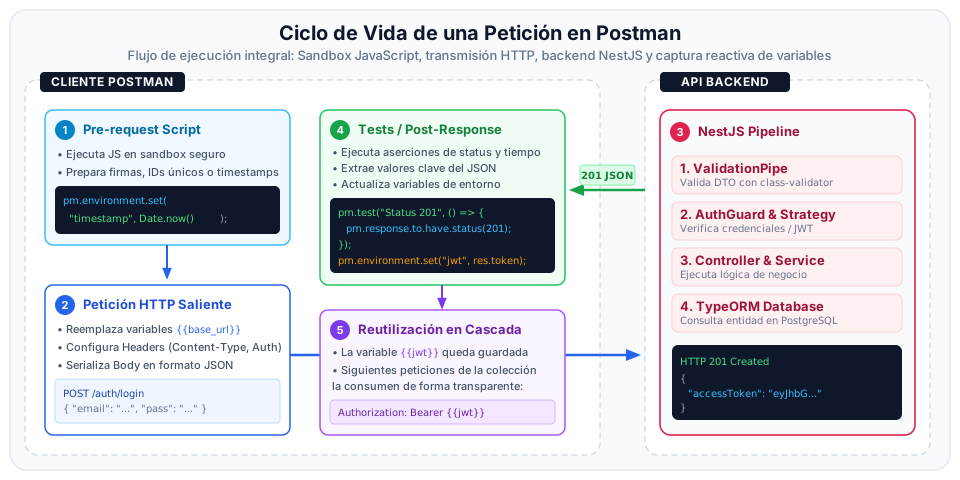
Execution Phases
- Phase 1: Pre-request Script: Postman runs a secure sandbox executing any JavaScript logic assigned to the request or collection level. Temporary variables can be set, hashes computed, or dynamic headers assigned.
- Phase 2: Request Compilation & Transmission: The client resolves all double-curly variable references (
{{...}}), formats headers, serializes the JSON body, and sends the HTTP request over the network to the server port. - Phase 3: NestJS Processing Pipeline: The backend receives the request. In a NestJS architecture, the request flows sequentially through
Middlewares, authenticationGuards,Interceptors,ValidationPipes(validating DTOs withclass-validator), and finally enters theControllerandServicebefore interacting with TypeORM and PostgreSQL. - Phase 4: Response Dispatch & Reception: The backend returns the HTTP response with its status code (
200,201,400,401,500), server headers, and JSON body. - Phase 5: Post-response Scripts and Tests: Postman instantly runs the test sandbox. It evaluates all
pm.test()assertions against the status code, response time, and payload. - Phase 6: Variable Persistence & Reuse: Critical values extracted from the response (such as an
accessToken) are stored in the environment viapm.environment.set(), making them immediately accessible for subsequent requests in the collection.
Variable Scopes and Hierarchy
Postman organizes variables into different hierarchical scopes. When a variable name exists in multiple scopes, Postman prioritizes the most specific scope (narrowest to broadest scope):
Description of Each Scope
- Global: Accessible across all collections and workspaces. Best suited for universal constants.
- Collection: Defined at the root of a collection. Shared across all requests within that module.
- Environment: Tied to a specific deployment target (e.g.,
Local,Staging,Production). Recommended forbase_urland session tokens. - Data: Injected from external data files (
.csvor.json) during batch runs in the Collection Runner. - Local: Declared inside Pre-request or Test scripts (
pm.variables.set()). Only alive during the execution of that specific request.
Authentication Flow and Request Chaining
In applications secured with JSON Web Tokens (JWT), manually copying and pasting tokens across endpoints is inefficient and error-prone. Automated chaining ensures a seamless testing workflow:
Sequence Breakdown
- The client sends login credentials to the public authentication endpoint in NestJS.
- The server verifies the password using
bcrypt, generates a signed JWT, and returns the token in the response payload. - The Postman test script intercepts the token and programmatically saves it to the
jwt_tokenenvironment variable. - On subsequent requests to protected routes, the
Authorization: Bearer {{jwt_token}}header resolves automatically without manual intervention.
2. Step-by-Step Practical Guide: Validating a NestJS API
In this section, we will build a complete testing workflow for a NestJS backend featuring authentication and protected resources.
Create Collection and Define Environment
The first step is organizing your requests into a collection and defining the base variables for the local development server.
- Open Postman and in the left sidebar select Collections > Create Collection (+). Name it
NestJS Web API. - In the left panel, navigate to Environments > Create Environment (+). Name it
Dev - Local. - Add the following variables:
| Variable | Type | Initial Value | Current Value |
|---|---|---|---|
base_url | default | http://localhost:3000 | http://localhost:3000 |
jwt_token | secret | (empty) | (empty) |
The Initial Value field is shared when syncing with your team or committing to public repositories. The Current Value field is stored exclusively in your local client, protecting sensitive secrets against accidental leaks.
Create the Login Request
Configure the HTTP request to authenticate against the NestJS authentication controller.
- Inside the
NestJS Web APIcollection, add a new request by clicking Add request. - Set the following parameters:
- Name:
01 - User Login - Method:
POST - URL:
{{base_url}}/api/v1/auth/login
- Name:
- Under the Headers tab, ensure the following header is present:
Content-Type: application/json
- Under the Body tab, choose raw with format JSON, entering the login payload:
{
  "email": "student@icesi.edu.co",
  "password": "SecurePassword123!"
}
Configure Automated Tests and Token Capture
In the Tests tab of the login request, write assertions to validate the response code and store the accessToken in the active environment.
// 1. Verify that the server responds with HTTP 200 or 201 (OK / Created)
pm.test("Status code is 200 or 201", function () {
    pm.expect(pm.response.code).to.be.oneOf([200, 201]);
});

// 2. Validate that the response contains a valid string accessToken
pm.test("Response body contains string accessToken", function () {
    // Parse the JSON response
    const responseData = pm.response.json();

    // Assert that accessToken property exists and is a non-empty string
    pm.expect(responseData).to.have.property("accessToken");
    pm.expect(responseData.accessToken).to.be.a("string").and.not.empty;

    // 3. Persist the received token into the active environment
    pm.environment.set("jwt_token", responseData.accessToken);
    console.log("JWT token stored successfully in active environment.");
});

// 4. Validate that latency is within acceptable limits
pm.test("Response time is under 800ms", function () {
    pm.expect(pm.response.responseTime).to.be.below(800);
});
Click Send. In the response panel below, you should see Test Results (3/3 PASS) and the jwt_token environment variable populated with the token string.
Configure Protected Endpoint with Bearer Token
Now we will configure an endpoint protected by an AuthGuard('jwt') in NestJS, consuming the {{jwt_token}} variable.
- Add a new request to the collection:
- Name:
02 - Create Protected Product - Method:
POST - URL:
{{base_url}}/api/v1/products
- Name:
- Navigate to the Authorization tab:
- Type:
Bearer Token - Token:
{{jwt_token}}
- Type:
- In the Body tab, select raw > JSON and supply the product data:
{
  "name": "27-inch Curved Monitor",
  "price": 1250000,
  "stock": 15,
  "description": "144Hz IPS panel for web interface development"
}
- In the Tests tab, add assertions to validate database creation:
// Validate REST creation status code
pm.test("Status code is 201 Created", function () {
    pm.response.to.have.status(201);
});

// Validate returned schema integrity
pm.test("Response contains an autogenerated numeric id", function () {
    const body = pm.response.json();
    pm.expect(body).to.have.property("id");
    pm.expect(body.id).to.be.a("number");
    pm.expect(body.name).to.eql("27-inch Curved Monitor");
});
Edge Cases and Error Handling (ValidationPipe)
A comprehensive test suite must also validate error handling and payload rejection.
- Add a request with intentionally invalid data:
- Name:
03 - DTO Validation Error (Negative Test) - Method:
POST - URL:
{{base_url}}/api/v1/products - Authorization:
Bearer Tokenwith{{jwt_token}}
- Name:
- Send a negative price and an empty name to trigger the NestJS
ValidationPipe:
{
  "name": "",
  "price": -500,
  "stock": "invalid"
}
- Set up the test script to assert that the server returns
400 Bad Request:
// Validate that ValidationPipe intercepts the malformed payload
pm.test("Server responds with HTTP 400 Bad Request", function () {
    pm.response.to.have.status(400);
});

pm.test("Response contains validation error messages array", function () {
    const errorResponse = pm.response.json();
    pm.expect(errorResponse).to.have.property("message");
    pm.expect(errorResponse.message).to.be.an("array");
});
Execute Suite with Collection Runner
The Collection Runner executes all collection requests in sequence, validating overall system regression stability.
- In the left panel, hover over the
NestJS Web APIcollection and click the three dots...> Run collection. - Verify execution order:
01 - User Login02 - Create Protected Product03 - DTO Validation Error
- Make sure the
Dev - Localenvironment is selected. - Click Run NestJS Web API. Postman will execute calls in order and display a detailed test pass/fail report.
3. Best Practices for API Testing in Postman
When building test suites in Postman for NestJS backends, adhere to these production-grade principles:
Built-in Dynamic Variables
To avoid unique key constraint violations in the database (e.g., trying to register a user with an email that already exists in PostgreSQL), Postman provides random data generators via {{$...}} syntax:
{{$randomEmail}}: Generates a random, unique email address.{{$randomFullName}}: Generates a simulated full name.{{$randomUUID}}: Generates a random UUID (version 4).{{$timestamp}}: Generates the current Unix timestamp in seconds.
You can use these dynamic variables directly in request bodies:
{
  "email": "{{$randomEmail}}",
  "fullName": "{{$randomFullName}}"
}
Resource Isolation and Complete CRUD Cycles
Structure collections to reflect the lifecycle of a resource:
- POST: Create the resource and store its generated identifier (
pm.environment.set("productId", res.id)). - GET: Query the resource using
{{base_url}}/api/v1/products/{{productId}}. - PATCH / PUT: Update specific fields and assert changes.
- DELETE: Tear down the resource after tests to keep the development database clean.
Robust and Granular Assertions
A resilient test should never be limited to simply checking 200 OK. Always validate:
- HTTP Status Code:
pm.response.to.have.status(200)or201. - Response Headers: Ensure
Content-Typeincludesapplication/json. - Payload Schema & Types: Verify that expected properties exist with proper data types (
string,number,array). - Response Times: Ensure queries do not exceed critical latency thresholds (e.g.,
pm.expect(pm.response.responseTime).to.be.below(500)).
Never commit real production tokens, database connection strings, or passwords into Initial Value fields when exporting or sharing environments. Keep sensitive secrets exclusively in Current Value, which stays private on your local machine.
Self-Assessment Quiz
Recommended Resources
Official Postman Documentation
Comprehensive reference guide for request building, environments, variables, and collections.
Postman Dynamic Variables
Complete reference of built-in mock data generators (emails, names, UUIDs, timestamps).
Postman Test Scripts Guide
Syntax reference for Chai.js assertions, JSON schema validations, and response handling.
Postman Learning Center on YouTube
Video tutorials on test automation, collection runner workflows, and industry best practices.